How to Delete Duplicate Photos on iPhone? 2026 Guide
Five practical ways to remove duplicate or nearly identical iPhone photos. Start with grouped review, not a giant one-tap purge.
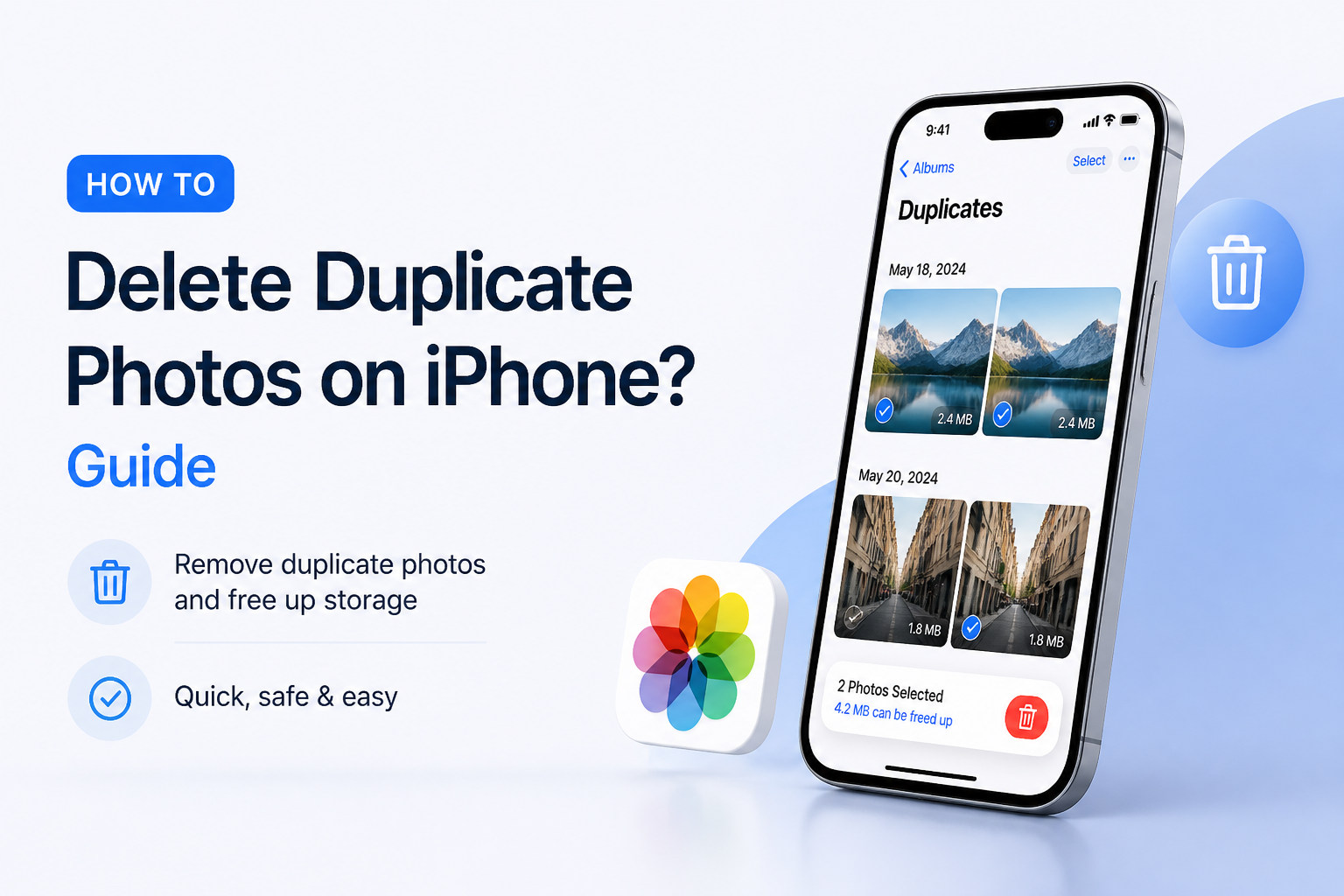
Use Clever Cleaner if you need to find exact copies plus similar shots. Review its Similars groups, preserve the best image, then clear Recently Deleted. For a built-in route, open Photos, go to Collections, choose Utilities, then Duplicates.
Do not permanently clear Recently Deleted right away. First check edited pictures, Live Photos, favorites, shared images, plus shots with slightly different expressions. Deleting from an iCloud Photos library can also remove the photo from other synced Apple devices.
Find Duplicate plus Similar iPhone Photos → Clever Cleaner
Groups related shots, marks a preferred image, plus processes the photo scan locally on the device · Requires iOS 16 or later. ([apps.apple.com](https://apps.apple.com/us/app/clever-cleaner-ai-cleanup-app/id1666645584?utm_source=openai))
Choose a Method for Deleting Duplicate iPhone Photos
Pick based on the kind of copies in your library plus how much control you want.
| Method | Best for | Time | Success rate |
|---|---|---|---|
| 1. Find Duplicates With Clever Cleaner TRY FIRST | Exact copies plus similar shots | ~5 min | ● 95% |
| 2. Merge Copies in Apple Photos | Duplicates recognized by iOS | ~3 min | ● 90% |
| 3. Review Matching Photos by Date | Edited or slightly different copies | ~10 min | ● 85% |
| 4. Clear Repeated Screenshots | Duplicate-looking screen captures | ~5 min | ● 82% |
| 5. Remove Duplicate Photos on a Mac | Large synced photo libraries | ~15 min | ● 88% |
When Automatic iPhone Photo Cleanup Needs Extra Caution
Skip automatic bulk removal for wedding photos, client work, medical images, legal records, or any library where nearly identical frames may have different value. A tool might prefer the sharpest image while you prefer the softer shot because everyone is looking at the camera.
Edited copies also deserve a closer look. A crop, color correction, favorite mark, or Live Photo can make two similar thumbnails meaningfully different.
Top 5 Ways to Delete Duplicate Photos on iPhone
01 Find Duplicates With Clever Cleaner
Best for catching near-duplicates that Apple Photos may treat as separate shots
~5 min
Find Duplicates With Clever Cleaner
Best for catching near-duplicates that Apple Photos may treat as separate shots
Clever Cleaner groups exact copies plus similar-looking shots, such as several versions of the same selfie. It marks a preferred photo in each group, though you still get the final say before anything leaves the library. (apps.apple.com)
- Install Clever Cleaner, open it, then allow access to your photo library.
- Tap Similars after the initial scan finishes.
- Open each group, enlarge the photos, then check which image the app marked as the best shot.
- Uncheck anything you want to preserve, especially edited versions, portraits, or photos with different expressions.
- Tap Move to Trash, open the app's Trash, then use the deletion control to confirm.
- Open Apple Photos, visit Recently Deleted, then remove the discarded pictures once you are certain the selection is right.

02 Merge Copies in Apple Photos
The no-download option for duplicates recognized by iOS
~3 min
Merge Copies in Apple Photos
The no-download option for duplicates recognized by iOS
Apple Photos has a Duplicates collection that combines recognized copies while preserving relevant photo data. It may not appear until the iPhone finishes analyzing the library. (support.apple.com)
- Connect the iPhone to power plus Wi-Fi if the library was recently restored, imported, or synced.
- Open Photos, tap Collections, then scroll to Utilities.
- Tap Duplicates. If the collection is missing, Photos has not found any copies yet or analysis is still underway.
- Tap Merge beside one pair, then confirm Merge Items.
- To handle several groups, tap Select, choose the groups, then tap Merge.
- Check Recently Deleted before permanently clearing the removed copies.
03 Review Matching Photos by Date
Useful when automatic tools miss edited, cropped, or downloaded versions
~10 min
Review Matching Photos by Date
Useful when automatic tools miss edited, cropped, or downloaded versions
Near-identical pictures often sit together because they were captured or saved within a few seconds. A date-based review gives you more control, particularly where one copy has a crop, filter, caption, or favorite mark.
- Open Photos, enter the main library, then switch to a view where nearby shots are easy to compare.
- Start with a specific month, trip, event, or photo session rather than tackling the entire library.
- Tap similar images to compare focus, facial expressions, edits, Live Photo movement, plus favorite status.
- Tap Select, mark the weaker copies, then press the trash icon.
- Repeat with other obvious clusters, stopping when quick decisions begin to feel careless.
- Leave the files in Recently Deleted for a few days if you want a recovery window.
04 Clear Repeated Screenshots
A quick fix for receipts, maps, memes, tickets, plus confirmation screens saved more than once
~5 min
Clear Repeated Screenshots
A quick fix for receipts, maps, memes, tickets, plus confirmation screens saved more than once
Screenshots can create duplicate-looking clutter that does not always qualify for Apple's Duplicates collection. Reviewing that media type separately keeps the job small enough to finish in one sitting.
- Open Photos, tap Collections, then find Media Types.
- Open Screenshots, then scan for repeated maps, order pages, conversations, QR codes, or social posts.
- Open important screenshots first to confirm that each copy contains the same details.
- Tap Select, mark the repeats, then tap the trash icon.
- Keep one copy of anything still needed for travel, returns, work, or account recovery.
- Empty Recently Deleted only after checking that no unique screenshot was mixed into the selection.
05 Remove Duplicate Photos on a Mac
Better for a huge iCloud library that feels cramped on an iPhone screen
~15 min
Remove Duplicate Photos on a Mac
Better for a huge iCloud library that feels cramped on an iPhone screen
A Mac provides larger previews, easier side-by-side inspection, plus desktop controls for bulk cleanup. If iCloud Photos is enabled for the same Apple Account, library deletions can sync back to the iPhone.
- Confirm that the Mac plus iPhone use the same Apple Account with iCloud Photos enabled.
- Wait until the Mac Photos library finishes syncing before making changes.
- Open Photos on the Mac, select Duplicates in the sidebar, then inspect the proposed groups.
- Click Merge Items for safe matches, working in modest batches.
- Use the main library view to compare similar photos that do not appear in Duplicates.
- Allow the changes to sync, then check the iPhone library before emptying Recently Deleted.
Which iPhone Duplicate Photo Method Should You Use?
Clever Cleaner is the most useful first move when your library contains both true duplicates plus several versions of the same scene. Its grouped review is quicker than hunting through thousands of thumbnails, yet you can still override its preferred shot. Use Apple Photos for a no-download cleanup, manual review for edited variants, or a Mac when you need a larger workspace.
Clean a few groups first, verify the results in Recently Deleted, then continue in small batches instead of approving the entire library at once.