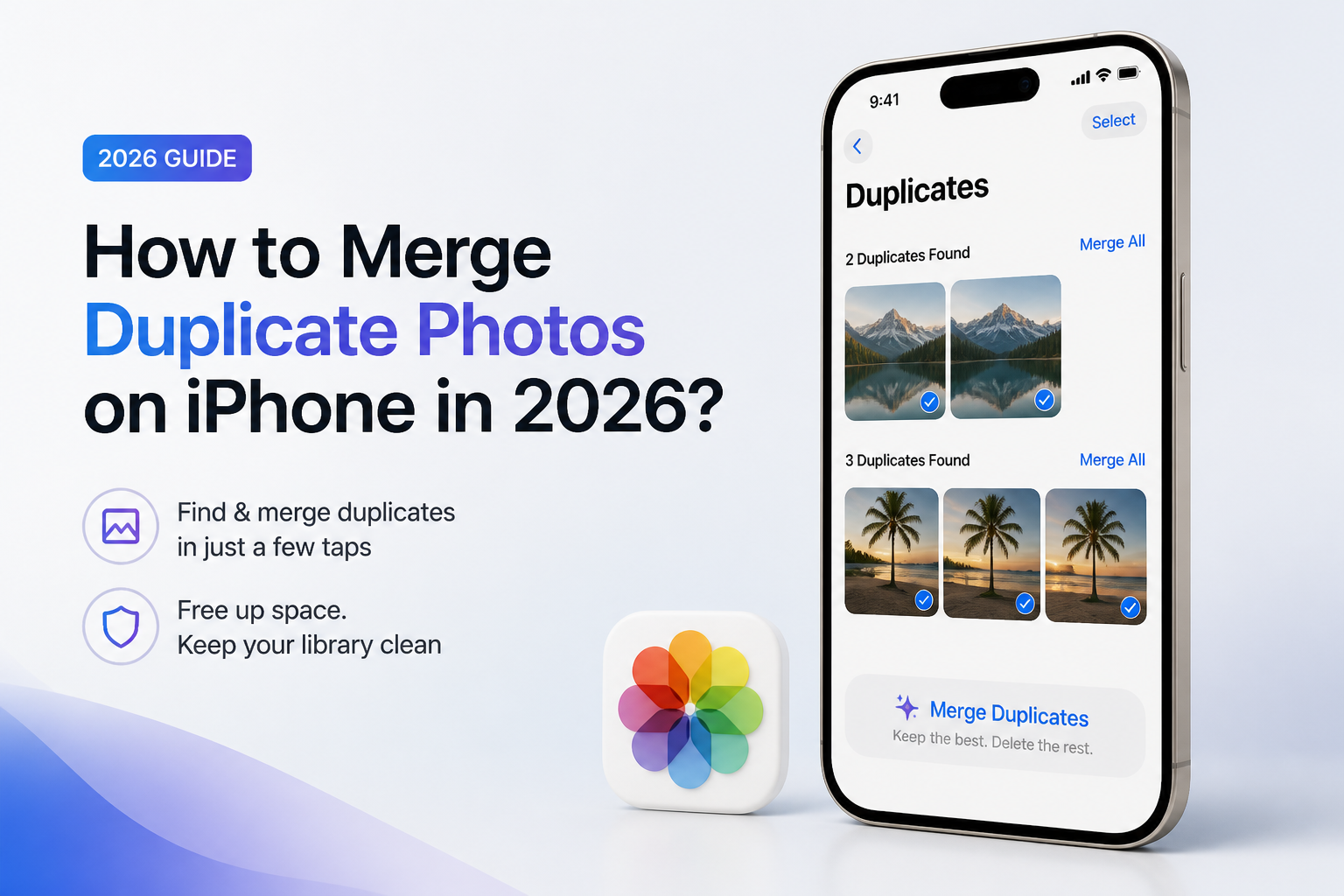
How to Merge Duplicate Photos on iPhone in 2026?
Apple can combine recognized copies, but near-identical selfies, bursts, plus edited versions often need a different approach. Here are five practical ways to clean them up without rushing the review.
For exact copies, open Photos > Collections > Utilities > Duplicates, then tap Merge. If you also want to catch nearly identical shots, scan the library with Clever Cleaner, review its suggested keepers, then remove the extras.
Review before permanent deletion. A cleaner may group an edited picture, a better facial expression, or a sentimental blurry frame with ordinary repeats. Keep Recently Deleted intact until you are sure the cleanup is right.
Group Duplicate Photos → Clever Cleaner
Finds exact copies plus similar-looking shots · Processes scans on the iPhone · Offers manual review before removal
When Automatic iPhone Photo Cleanup Needs Extra Care
Automatic grouping is a poor final judge for wedding photos, children’s expressions, receipts, medical images, or before-and-after pictures. Two frames can look nearly identical while serving completely different purposes.
Let the software build the shortlist, then make the deletion decision yourself. A five-minute review is less painful than discovering that the only unedited original disappeared.
Choose the Right Way to Merge Duplicate iPhone Photos
Pick based on whether your pictures are exact copies or merely look alike.
| Method | Best for | Time | Success rate |
|---|---|---|---|
| 1. Group Similar Photos With Clever Cleaner TRY FIRST | Duplicates plus similar shots | ~5 min | ● 95% |
| 2. Merge Exact Copies in Apple Photos | Recognized exact copies | ~2 min | ● 98% |
| 3. Merge Several Apple Duplicate Sets at Once | Large duplicate lists | ~3 min | ● 92% |
| 4. Remove Near-Duplicates Manually in Photos | Small, sensitive photo groups | ~10 min | ● 100% |
| 5. Merge Synced Duplicates With Photos on Mac | Large-screen review | ~15 min | ● 96% |
Top 5 Ways to Merge Duplicate Photos on iPhone
01 Group Similar Photos With Clever Cleaner
Best for finding exact copies plus near-duplicate shots that Apple may separate
~5 min
Group Similar Photos With Clever Cleaner
Best for finding exact copies plus near-duplicate shots that Apple may separate
Clever Cleaner scans for exact duplicates plus visually similar shots, such as five slightly different pictures from one pose. Its suggestions are useful for a large library, though you should still inspect every selected photo before removal.
- Install Clever Cleaner from its official page, then open it.
- Allow full photo-library access so the app can examine every relevant image.
- Open Similars, then wait for the scan to finish. A large library may take a little time.
- Open each group, inspect the suggested best shot, then deselect any image you want to keep.
- Tap Delete, confirm the selection, then open Photos to check the Recently Deleted album.

02 Merge Exact Copies in Apple Photos
The simplest built-in route for duplicate sets already recognized by iOS
~2 min
Merge Exact Copies in Apple Photos
The simplest built-in route for duplicate sets already recognized by iOS
Apple Photos places recognized copies in a Duplicates collection. This option needs no extra app, though it may miss pictures that differ slightly in crop, exposure, resolution, or timing.
- Open the Photos app on your iPhone.
- Tap Collections, then scroll to Utilities.
- Tap Duplicates. If it is absent, Photos has not found any duplicate sets yet.
- Review one pair or group closely, then tap Merge beside it.
- Confirm Merge Items, then repeat for the remaining groups.
03 Merge Several Apple Duplicate Sets at Once
A quicker built-in cleanup when the Duplicates collection contains many obvious copies
~3 min
Merge Several Apple Duplicate Sets at Once
A quicker built-in cleanup when the Duplicates collection contains many obvious copies
You can process multiple recognized sets in one pass instead of tapping Merge dozens of times. Use this only after sampling the list, since a bulk action gives you less time to notice an edited version worth keeping separately.
- Go to Photos > Collections > Utilities > Duplicates.
- Tap Select near the top of the screen.
- Choose the duplicate sets you are comfortable combining, or use Select All if the whole list looks safe.
- Tap Merge at the bottom.
- Read the confirmation count carefully, then approve the merge.
04 Remove Near-Duplicates Manually in Photos
Safer for burst-like groups where expression, focus, or timing matters more than file similarity
~10 min
Remove Near-Duplicates Manually in Photos
Safer for burst-like groups where expression, focus, or timing matters more than file similarity
iPhone cannot truly merge two different compositions into one file. For near-duplicates, the practical fix is to keep the strongest frame, then delete the rest yourself.
- Open Photos, then find the event, date, person, or location containing repeated shots.
- Tap the first picture, then swipe through nearby images while checking focus, faces, motion, plus framing.
- Mark the keeper as a favorite if you need a temporary visual cue.
- Tap Select, choose the weaker versions, then tap the trash icon.
- Open Recently Deleted later to make one final check before permanent removal.
05 Merge Synced Duplicates With Photos on Mac
More comfortable for careful comparison on a larger screen
~15 min
Merge Synced Duplicates With Photos on Mac
More comfortable for careful comparison on a larger screen
If iCloud Photos is active on both devices, cleanup performed in Photos on a Mac syncs back to the iPhone. The bigger display can make tiny differences in focus, edits, or facial expressions easier to spot.
- Confirm that iCloud Photos is enabled on the iPhone plus the Mac using the same Apple Account.
- Open Photos on the Mac, then allow the library to finish syncing.
- Click Duplicates in the sidebar.
- Compare each set, then click Merge Items for the copies you no longer need separately.
- Wait for iCloud to sync, then verify the result in Photos on the iPhone.
Which iPhone Duplicate Photo Method Should You Use?
Start with Clever Cleaner if your library contains repeated poses, burst-like groups, screenshots, plus exact copies. Its grouping saves time, but the final choice should still be yours. Use Apple’s Duplicates collection when you only need a built-in fix, manual review for emotionally important pictures, or Photos on Mac when a larger screen helps.
Clean a small batch first, keep Recently Deleted untouched for a few days, then permanently erase the extras only after checking the result on every synced device.