How to Delete Analytics Data on iPhone? Quick Guide
You can view iPhone diagnostic reports, but iOS does not provide a simple button for deleting them one by one. The right fix depends on whether you mean Apple logs, website tracking, app data, or storage clutter.
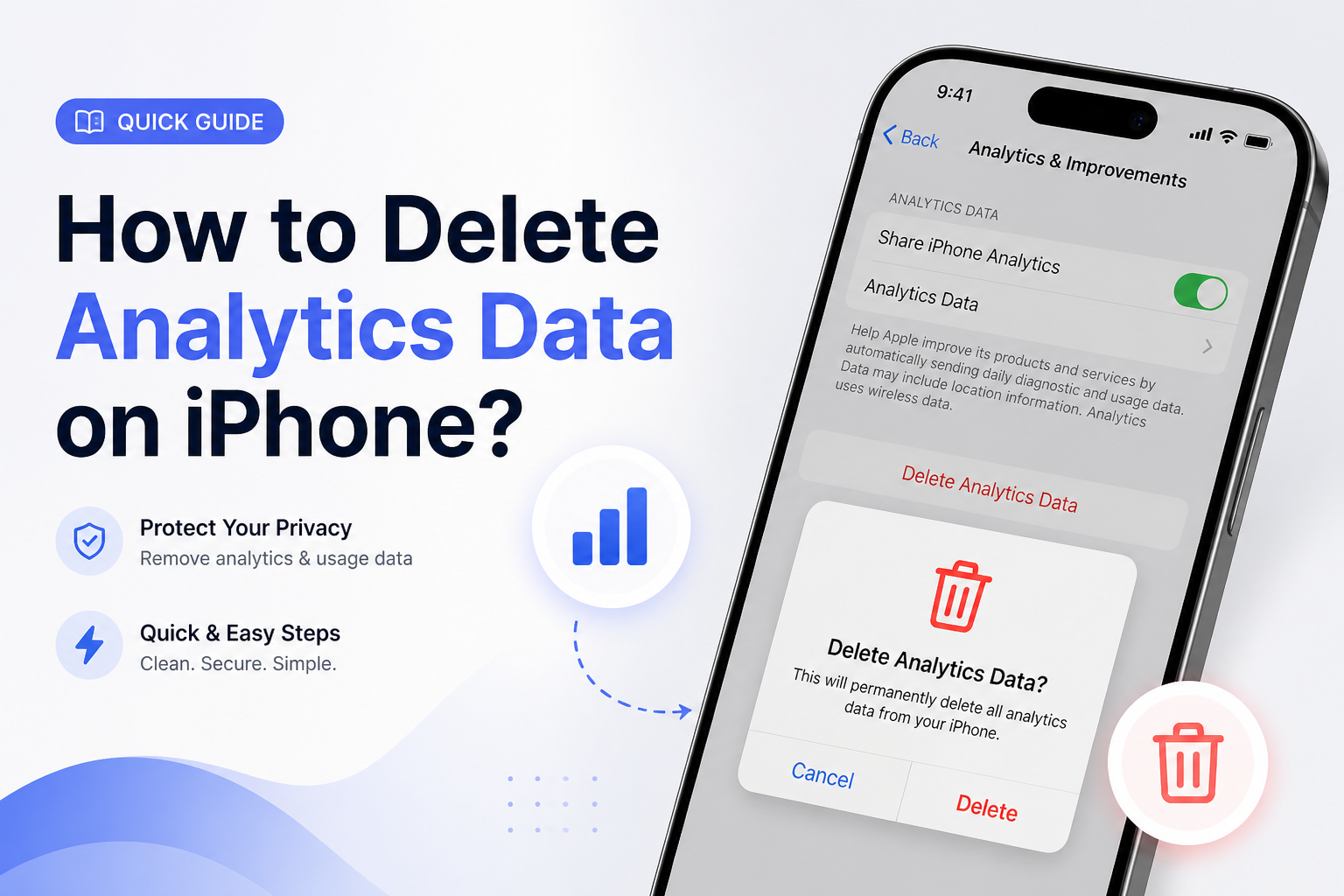
Start by opening Settings → Privacy & Security → Analytics & Improvements, then disable Share iPhone Analytics. Existing reports may remain until iOS rotates them out. If you only want more free space, clean large personal media rather than chasing small protected logs.
Do not erase your iPhone solely to tidy the Analytics Data list. A full erase removes personal content, payment cards, settings, plus local app data. Back up first if a complete wipe is genuinely necessary.
Free Up iPhone Storage Without Chasing System Logs → Clever Cleaner
Finds similar photos, large videos, screenshots, plus bulky Live Photos · Processing runs on the iPhone · Built for iOS
When Not to Erase iPhone Analytics Data
Leave the logs alone if Apple Support or an app developer is helping diagnose crashes, overheating, battery drain, or repeated restarts. A recent report can reveal which process failed.
Also skip drastic cleanup if the files merely look numerous. A long list does not prove that analytics logs consume a meaningful share of storage.
Choose the Right Way to Remove iPhone Analytics or Tracking Data
First identify which kind of data you actually want gone.
| Method | Best for | Time | Success rate |
|---|---|---|---|
| 1. Turn Off iPhone Analytics Sharing TRY FIRST | Stopping future reports sent to Apple | ~1 min | ● 100% |
| 2. Sync Diagnostic Logs to a Computer | Older crash logs still shown on iPhone | ~5 min | ● 55% |
| 3. Clear Safari Website Data | Cookies, trackers, cache, browsing records | ~2 min | ● 95% |
| 4. Remove Photo Clutter With Clever Cleaner | Freeing storage without touching system logs | ~5–15 min | ● 90% |
| 5. Erase the iPhone Completely | Selling the phone or fixing severe faults | ~30–90 min | ● 100% |
Top 5 Ways to Delete or Reduce Analytics Data on iPhone
01 Turn Off iPhone Analytics Sharing
Best first move if you want to stop sending new diagnostic reports to Apple
~1 min
Turn Off iPhone Analytics Sharing
Best first move if you want to stop sending new diagnostic reports to Apple
The Analytics Data screen has no normal Delete All button. Turning off sharing will not erase every log already listed, but it stops your iPhone from submitting new device analytics to Apple.
- Open Settings.
- Tap Privacy & Security.
- Choose Analytics & Improvements.
- Switch off Share iPhone Analytics. If an Apple Watch is paired, the label may mention both devices.
- Turn off optional categories on the same screen if you do not want to share iCloud, Siri, Health, or other improvement data.

02 Sync Diagnostic Logs to a Computer
Worth trying when old crash reports remain visible after analytics sharing is disabled
~5 min
Sync Diagnostic Logs to a Computer
Worth trying when old crash reports remain visible after analytics sharing is disabled
A full computer sync has cleared transferred diagnostic reports on some iOS versions. Results vary on newer releases, so treat this as a low-risk attempt rather than a guaranteed delete command.
- Connect the iPhone to a Mac or Windows PC with a trusted USB cable.
- Unlock the iPhone, then tap Trust if asked.
- On a Mac, open Finder. On Windows, open Apple Devices.
- Select the iPhone, then run a complete Sync, not only a backup.
- Disconnect safely, restart the iPhone, then check Settings → Privacy & Security → Analytics & Improvements → Analytics Data.
03 Clear Safari Website Data
Use this when “analytics data” means cookies, trackers, cached pages, or browsing records
~2 min
Clear Safari Website Data
Use this when “analytics data” means cookies, trackers, cached pages, or browsing records
Web analytics stored by sites is separate from the crash logs under Analytics Data. Clearing Safari data removes cookies, cache, tracking data, plus saved website sessions, but it does not empty the iOS diagnostic-log list.
- Open Settings, tap Apps, then choose Safari.
- Tap Clear History and Website Data.
- Choose the time range plus Safari profile you want to clear.
- Tap Clear History to confirm.
- To keep browsing history while removing site data, use Safari → Advanced → Website Data → Remove All Website Data instead.
04 Remove Photo Clutter With Clever Cleaner
A practical alternative when the real problem is low storage rather than diagnostic logs
~5–15 min
Remove Photo Clutter With Clever Cleaner
A practical alternative when the real problem is low storage rather than diagnostic logs
Clever Cleaner cannot delete protected iOS analytics logs. It can recover usable space by finding similar photos, large videos, screenshots, plus Live Photos, which is usually more productive if a small free-space bar led you to the Analytics Data menu.
- Install Clever Cleaner from the App Store link on its official page.
- Allow photo-library access so the app can scan media stored on the iPhone.
- Review similar-photo groups instead of accepting every suggested removal blindly.
- Check the large-video, screenshot, plus Live Photo sections for files you no longer need.
- Delete the chosen items, then open Photos → Recently Deleted to review them before permanent removal.
05 Erase the iPhone Completely
The last resort for a clean device when ordinary controls cannot remove stubborn diagnostic files
~30–90 min
Erase the iPhone Completely
The last resort for a clean device when ordinary controls cannot remove stubborn diagnostic files
Erase All Content and Settings removes the phone’s local content, including existing logs. This is far too destructive for routine analytics cleanup, so use it only before selling the phone or while resolving a serious storage or software fault.
- Back up important photos, messages, authenticator details, plus files to iCloud or a computer.
- Confirm that you know the Apple Account password used for Activation Lock.
- Open Settings → General → Transfer or Reset iPhone.
- Tap Erase All Content and Settings, then review the data that will be removed.
- Enter the passcode, complete the erase, then set up the iPhone. Restore your backup only if you still need its saved content.
Which iPhone Analytics Cleanup Method Should You Use?
Turn off Share iPhone Analytics first if privacy is the concern. Clear Safari data for website trackers, or remove a troublesome app if its own cache is the issue.
If you were browsing Analytics Data because storage is low, Clever Cleaner offers a safer target by helping you review large or repeated media. Reserve a complete iPhone erase for resale, persistent faults, or a true clean-start setup.
Disable analytics sharing now, wait for iOS to rotate old logs, then focus storage cleanup on large photos, videos, downloads, plus app caches.