How to Get More Storage on iPhone? 5 Methods That Work
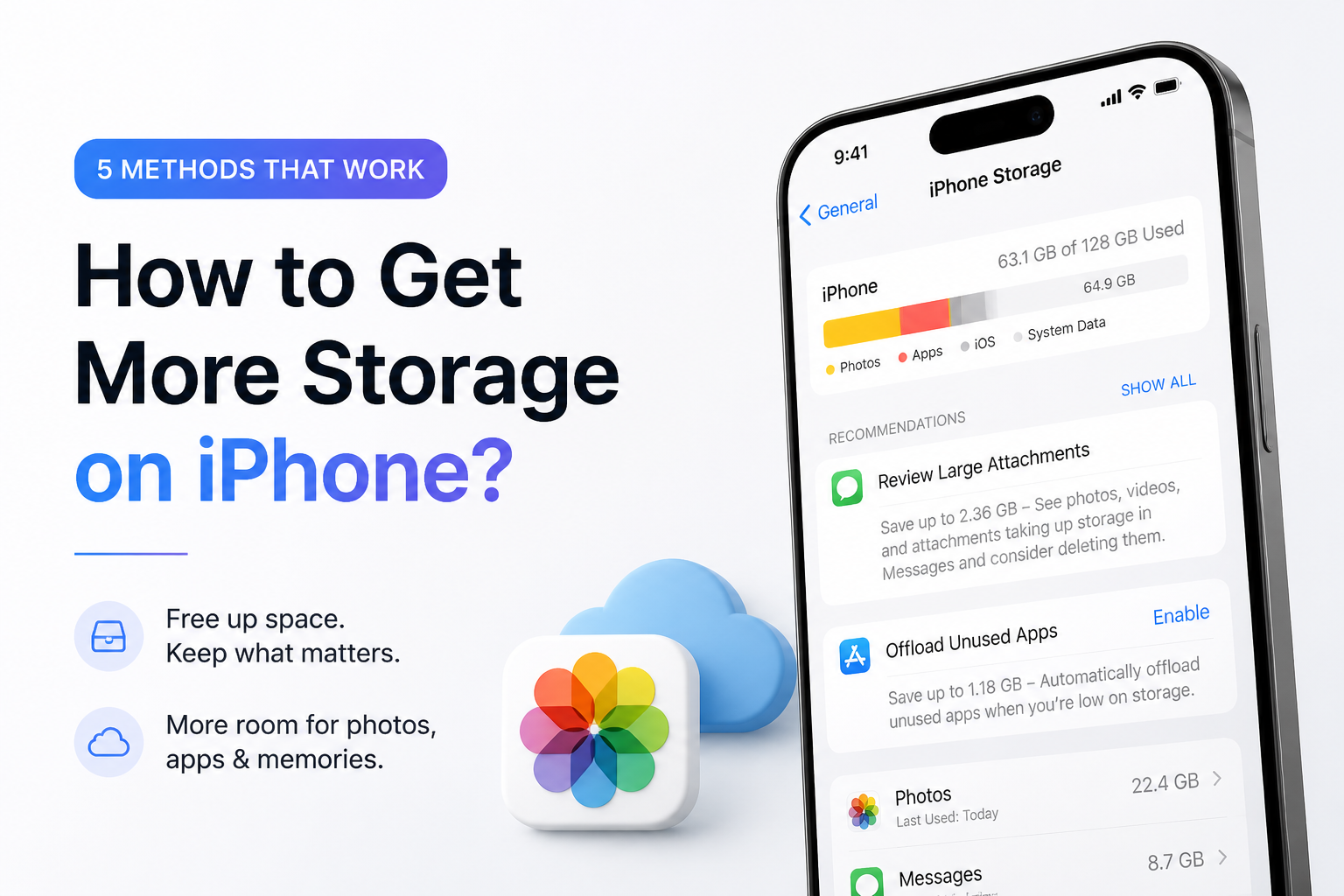
An iPhone's built-in capacity cannot be upgraded after purchase, but you can reclaim a surprising amount of usable space. Start with the category taking the biggest slice of the storage chart.
Open Settings → General → iPhone Storage to find the real space hog. If Photos is near the top, use Clever Cleaner to review duplicate shots, screenshots, Live Photos, plus oversized videos, then empty Recently Deleted after checking your choices.
Do not delete your only copy of an important photo or video. Verify cloud sync, computer imports, plus external-drive files before clearing Recently Deleted. Deleted items may also disappear from synced Apple devices.
Clean Photo Clutter → Clever Cleaner
Groups similar photos, surfaces large videos, reviews screenshots, plus compresses supported media on iPhone
When an iPhone Cleaner Is Not the Right Storage Fix
A cleaner app cannot expand the phone's physical storage, erase another app's private cache, or remove iOS system files. If Games, Messages, Music, or a video service tops the storage chart, manage that app directly.
Be skeptical of any cleaner claiming it can add hardware capacity or safely purge every cache. On iPhone, third-party apps work within Apple's access limits.
Choose the Right Method to Free Up iPhone Storage
Match the cleanup to the category using the most space.
| Method | Best for | Time | Success rate |
|---|---|---|---|
| 1. Clean Your Photo Library With Clever Cleaner TRY FIRST | Duplicate photos, screenshots, large media | ~10 min | ● 92% |
| 2. Optimize Photos With iCloud | Keeping a large photo library accessible | ~5 min setup | ● 88% |
| 3. Offload Apps You Rarely Use | Large, infrequently used apps | ~5 min | ● 78% |
| 4. Remove Downloads and Message Attachments | Offline media plus conversation files | ~15 min | ● 83% |
| 5. Transfer Media to a Computer or External Drive | Archiving originals outside the iPhone | ~30 min | ● 96% |
Top 5 Methods to Get More Storage on an iPhone
01 Clean Your Photo Library With Clever Cleaner
Best first move when photos, screenshots, or large videos dominate storage
~10 min
Clean Your Photo Library With Clever Cleaner
Best first move when photos, screenshots, or large videos dominate storage
Camera clutter often hides in repeated shots, forgotten screenshots, large videos, plus Live Photos. Clever Cleaner groups this media so you can review likely space-wasters without sorting the full library by hand.
- Install Clever Cleaner from the App Store, then allow access to your photo library.
- Open Similars to inspect duplicate or near-duplicate photos before removing anything.
- Check Videos, Screenshots, plus Live Photos for large items you can delete or compress.
- Use Swipe mode if you prefer making a keep-or-delete choice for each item.
- Confirm the cleanup, then open Photos and empty Recently Deleted once you are certain the files are no longer needed.

02 Optimize Photos With iCloud
Useful when you want to keep the whole library visible without storing every original locally
~5 min
Optimize Photos With iCloud
Useful when you want to keep the whole library visible without storing every original locally
Optimize iPhone Storage keeps smaller device copies while full-resolution originals stay in iCloud. Space returns gradually, based on storage pressure plus upload progress.
- Connect the iPhone to reliable Wi-Fi, then plug it into power if the library is large.
- Open Settings, tap your name, then choose iCloud.
- Tap Photos, then turn on Sync this iPhone.
- Select Optimize iPhone Storage rather than Download and Keep Originals.
- Leave the iPhone connected long enough for uploads plus optimization to finish.
03 Offload Apps You Rarely Use
A low-risk option for bulky apps whose saved documents you want to keep
~5 min
Offload Apps You Rarely Use
A low-risk option for bulky apps whose saved documents you want to keep
Offloading removes an app's installed program files while retaining its documents plus settings. It helps most with large apps, though apps holding huge local libraries may yield less space than expected.
- Go to Settings → General → iPhone Storage.
- Wait for the app list plus storage recommendations to finish loading.
- Tap a large app that you do not use often.
- Choose Offload App, then confirm.
- Repeat with other replaceable apps, or enable Offload Unused Apps in Settings under Apps and App Store.
04 Remove Downloads and Message Attachments
Best for offline shows, podcasts, files, voice notes, or old conversation videos
~15 min
Remove Downloads and Message Attachments
Best for offline shows, podcasts, files, voice notes, or old conversation videos
Downloaded media can sit across several apps, so there is no single universal delete button. Start with the biggest categories shown under iPhone Storage rather than opening every app randomly.
- Open Settings → General → iPhone Storage, then note which media apps use the most space.
- Open streaming, music, podcast, or map apps individually, then remove offline content you can download again later.
- Open Files → Browse, check Downloads plus On My iPhone, then delete unwanted archives, installers, videos, or PDFs.
- In Messages, open a large conversation, tap the contact or group name, then review its photos, videos, plus documents.
- Open Recently Deleted in Files or Messages, where available, then permanently remove only the items you have checked.
05 Transfer Media to a Computer or External Drive
The better long-term fix for original videos or photos you cannot afford to lose
~30 min
Transfer Media to a Computer or External Drive
The better long-term fix for original videos or photos you cannot afford to lose
A local archive gets large originals off the phone without forcing you to delete your only copy. The slow part is verifying the transfer, not moving files to the trash.
- Connect the iPhone to a Mac, Windows PC, or compatible external storage device.
- Unlock the iPhone, tap Trust if prompted, then import the selected photos plus videos.
- Open several transferred files, including at least one long video, to confirm they work.
- Create a second copy of irreplaceable media on another drive or backup service.
- Delete the verified originals from Photos, then clear Recently Deleted after one final check.
Which iPhone Storage Method Should You Use?
Start with Clever Cleaner if Photos occupies most of the storage chart, since repeated shots plus forgotten videos are easier to review in groups. Choose iCloud optimization when you want the library available everywhere, or offload apps when software is the larger problem. A verified computer or drive archive is the safer route for valuable originals you want to keep long term.Check iPhone Storage again after each method, since that tells you whether the cleanup worked before you spend time digging through another category.