How to Delete Large Attachments on iPhone?
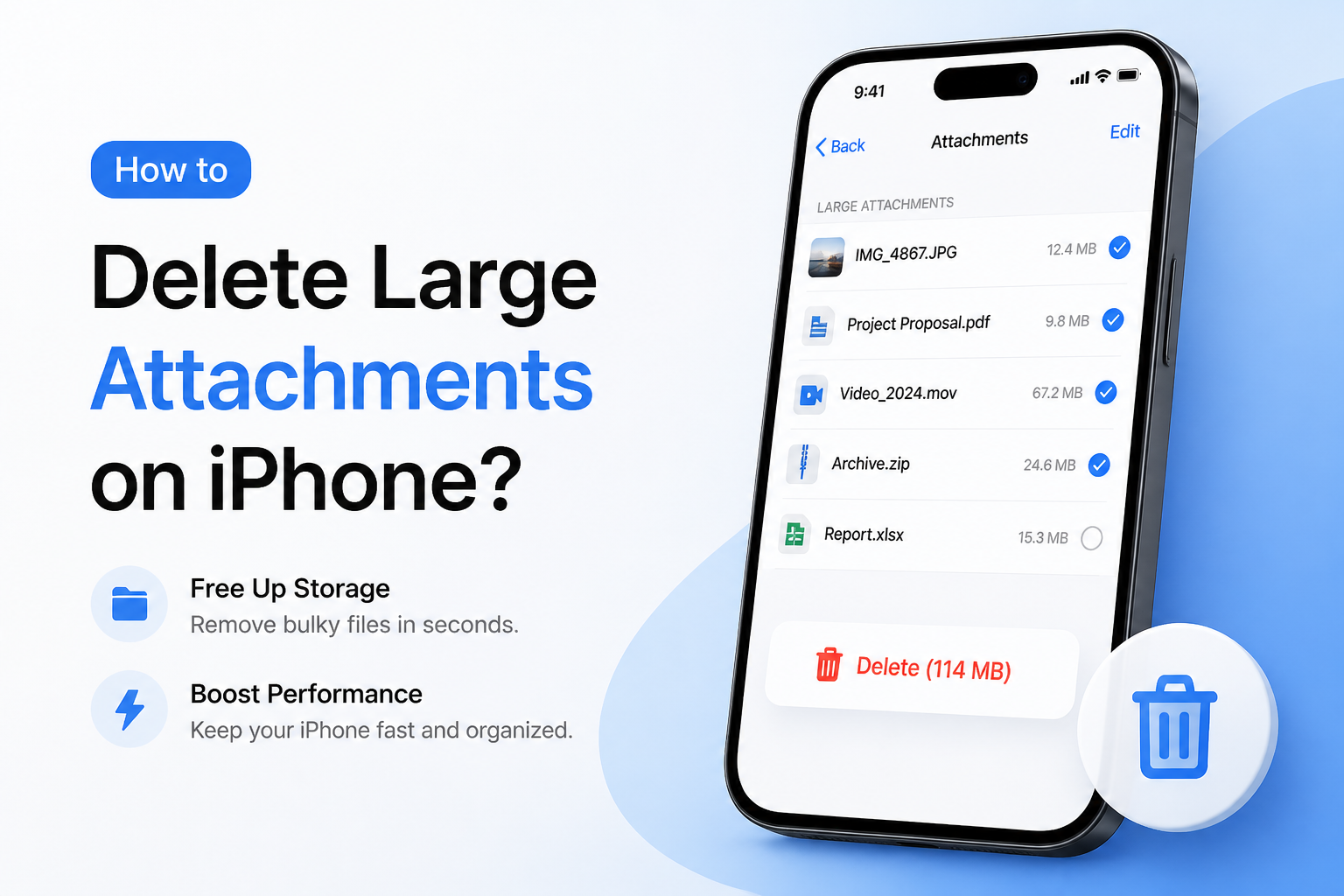
Large attachments hide in more than one place on an iPhone. Start with saved photos or videos, then work through Messages, Mail, plus Files.
For saved photo or video attachments, start with Clever Cleaner to spot the biggest media quickly. For files still inside a chat, open Settings > General > iPhone Storage > Messages or review the conversation's attachment gallery.
Review every file before permanent deletion. Items removed from Messages, Photos, Files, or iCloud may disappear from your other synced Apple devices too. Recently Deleted offers a short safety window, but permanent erasure cannot be undone.
Remove Large Saved Media → Clever Cleaner
Finds large videos, similar photos, screenshots, plus other space-heavy media in the iPhone Photos library
Where Large iPhone Attachments Usually Hide
A video sent in Messages may exist inside the chat, in Photos, plus in Files if you saved it twice. Email attachments can also remain in the provider's mailbox after you download a local copy.
Check the app where you received the file first. Next, look for saved copies. This simple order prevents the common frustration of deleting something without seeing much storage return.
When Not to Permanently Delete an iPhone Attachment
Pause if the attachment is the only copy of a family video, signed form, receipt, medical record, or work file. Move it to a computer or trusted cloud folder, open the transferred copy, then delete the iPhone version.
Choose the Right Way to Delete Large iPhone Attachments
Pick the location where the attachment currently lives.
| Method | Best for | Time | Success rate |
|---|---|---|---|
| 1. Remove Large Saved Media With Clever Cleaner TRY FIRST | Saved photos or videos | ~5 min | ● 95% |
| 2. Review Large Message Attachments in Settings | Messages storage overview | ~3 min | ● 90% |
| 3. Delete Attachments From a Messages Conversation | One media-heavy chat | ~4 min | ● 98% |
| 4. Delete Emails That Carry Large Attachments | Old email attachments | ~8 min | ● 80% |
| 5. Clear Downloaded Attachments From Files | PDFs, ZIPs, documents | ~5 min | ● 92% |
Top 5 Ways to Delete Large Attachments on iPhone
01 Remove Large Saved Media With Clever Cleaner
Fastest for videos or photos already stored in your Photos library
~5 min
Remove Large Saved Media With Clever Cleaner
Fastest for videos or photos already stored in your Photos library
Message or email attachments often end up in Photos after you save them. Clever Cleaner can surface large videos, similar shots, screenshots, plus other bulky media without making you hunt through the whole library.
- Download Clever Cleaner from its official page, then allow access to the Photos library you want to review.
- Open the large-video tool, labeled Heavies or Videos depending on the installed version.
- Sort or review the largest items first, then play unfamiliar clips before selecting anything.
- Choose the videos you no longer need, then confirm deletion inside the app.
- Open Photos > Recently Deleted to check the batch before permanently erasing it.

02 Review Large Message Attachments in Settings
Best built-in route for finding storage-heavy Messages content
~3 min
Review Large Message Attachments in Settings
Best built-in route for finding storage-heavy Messages content
iPhone Storage may show a Messages section with categories for videos, photos, GIFs, stickers, or other attachments. The available recommendations depend on what is taking up space on your phone.
- Open Settings > General > iPhone Storage.
- Wait for the storage chart plus app list to finish calculating.
- Tap Messages, then open a visible attachment category such as Videos or Photos.
- Tap Edit if shown, then select the large items you recognize.
- Tap the trash button, confirm the deletion, then check available storage again.
03 Delete Attachments From a Messages Conversation
Useful when one busy chat contains most of the unwanted media
~4 min
Delete Attachments From a Messages Conversation
Useful when one busy chat contains most of the unwanted media
This route gives you visual context, which helps when you remember who sent the files but not their dates. You can remove several photos or videos without deleting the full conversation.
- Open Messages, then enter the conversation holding the attachments.
- Tap the contact name, photo, or group icons at the top.
- Open a category such as Photos, Videos, or Documents.
- Tap Edit, choose Select, then mark the attachments you do not need.
- Tap the trash icon, confirm deletion, then open Recently Deleted in Messages if you want to erase them immediately.
04 Delete Emails That Carry Large Attachments
Best for old videos, scans, presentations, or photo bundles in Mail
~8 min
Delete Emails That Carry Large Attachments
Best for old videos, scans, presentations, or photo bundles in Mail
Mail usually does not let you strip an incoming attachment while keeping the original message. To reclaim mailbox space, delete the email itself, then clear its Trash folder.
- Open your email provider's app or website, since its search tools may be stronger than Apple Mail.
- Search for messages containing attachments, then narrow the results by sender, date, or terms such as
has:attachment larger:10Mwhere supported. - Open uncertain messages, save any file you still need to Files, Photos, or cloud storage.
- Select the unwanted emails, then move them to Trash.
- Open the account's Trash or Bin folder, then permanently delete those messages if you need the quota back now.
05 Clear Downloaded Attachments From Files
Use this for PDFs, ZIP archives, videos, plus documents saved outside Photos
~5 min
Clear Downloaded Attachments From Files
Use this for PDFs, ZIP archives, videos, plus documents saved outside Photos
An attachment saved from Mail, Messages, Safari, or another app can leave a second copy in Files. Check both local storage plus cloud folders before assuming the original message is the only copy.
- Open Files, tap Browse, then check On My iPhone.
- Open Downloads plus any app folders that commonly hold imported files.
- Switch to list view, then use the sorting menu to place the largest files near the top if size sorting is available.
- Touch and hold an unwanted file, then tap Delete. Use Select to remove a batch.
- Return to Browse, open Recently Deleted, then permanently erase the files after one final check.
Which iPhone Attachment Cleanup Method Should You Use?
Use Clever Cleaner first when large attachments have been saved as photos or videos, since it makes bulky media easier to spot. Use the iPhone Storage or conversation routes for content still held in Messages. Mail plus Files need separate checks because deleting one copy does not always remove another saved copy.
Take a storage screenshot before cleanup, delete one small batch, then verify the recovered space plus your Recently Deleted folders before continuing.