How Do I Stop My iPhone from Duplicating Photos? 5 Methods
Duplicate photos usually come from repeated imports, app downloads, computer syncing, or a library that has not finished indexing. These five fixes clean the current mess plus reduce the chance of it returning.
Start by scanning the library with Clever Cleaner if you have both duplicates plus near-identical shots. After cleanup, check iCloud’s sync status, disable unwanted app saves, then remove any overlapping Finder or PC photo sync.
Review before deleting. Similar photos may include different edits, resolutions, Live Photo versions, or exposures worth keeping. Deleted items also remain in Recently Deleted until removed permanently or cleared automatically.
Clean Duplicate Photos With Clever Cleaner → Clever Cleaner
Finds exact duplicates plus similar-looking shots · Reviews groups before removal · Runs photo analysis locally on the device
Top 5 Methods to Stop Duplicate Photos on an iPhone
01 Clean Duplicate Photos With Clever Cleaner
Best for clearing exact copies plus near-identical shots in one pass
~5 min
Clean Duplicate Photos With Clever Cleaner
Best for clearing exact copies plus near-identical shots in one pass
Clever Cleaner is useful when the clutter includes burst-like shots, repeated selfies, or slightly different versions that Apple may not classify as exact duplicates. It groups similar images, proposes a best shot, then lets you check every selection before removal.
- Install Clever Cleaner, open it, then grant full access to your photo library.
- Let the initial scan finish, then open Similars.
- Review each group. Keep the sharpest or most useful image, then mark the extra copies for removal.
- Tap Move to Trash, review the trash, then confirm the deletion.
- Open Apple Photos, go to Collections > Utilities > Recently Deleted, then permanently delete the unwanted pictures if you need the storage immediately.

02 Merge Duplicates in Apple Photos
The built-in fix for copies that iOS recognizes as duplicates
~3 min
Merge Duplicates in Apple Photos
The built-in fix for copies that iOS recognizes as duplicates
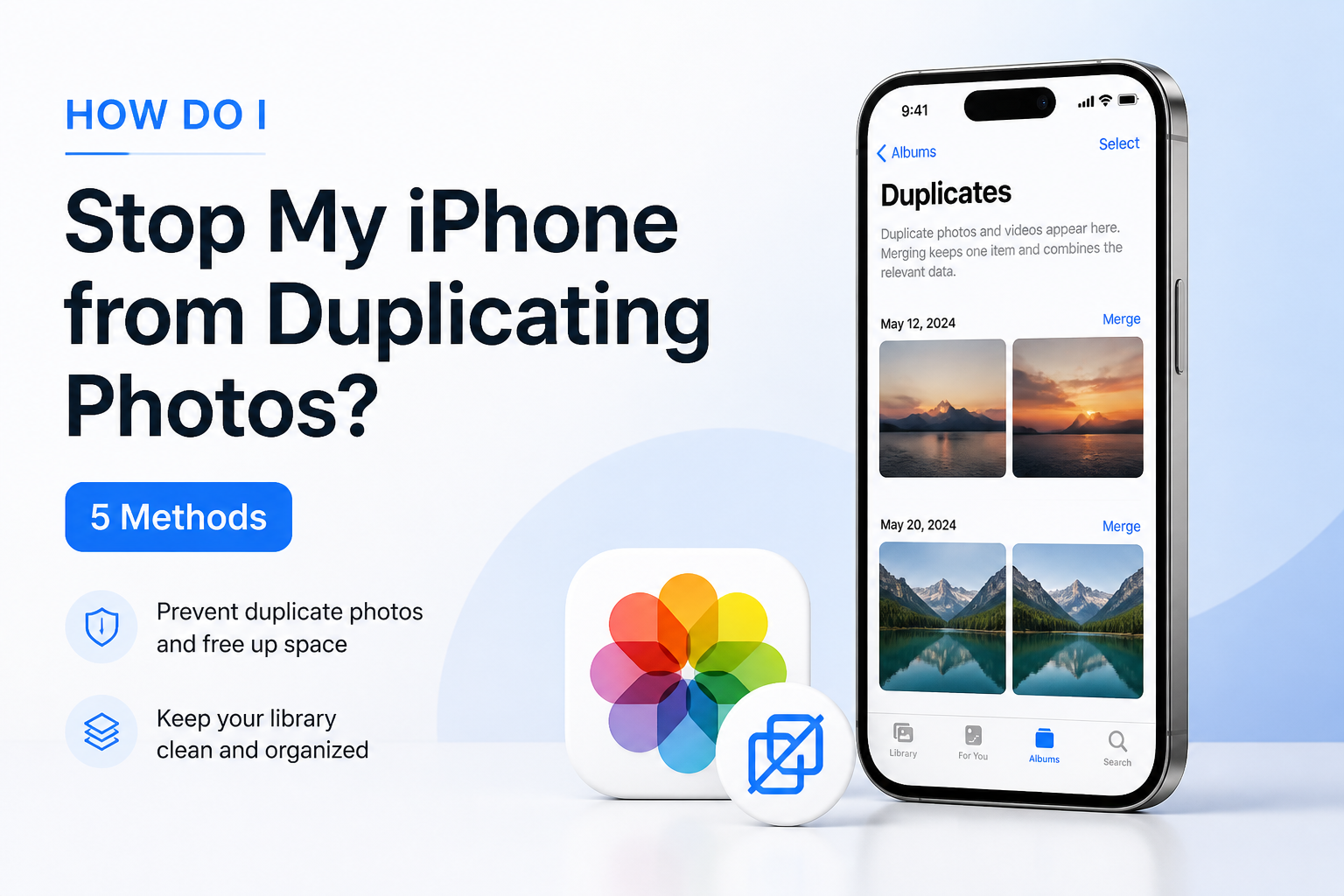
The Photos app has its own Duplicates collection. Merging keeps one version with the highest-quality data plus relevant metadata, while the redundant items move to Recently Deleted.
- Connect the iPhone to power, lock it, then leave it for several hours if the Duplicates collection has not appeared yet.
- Open Photos, tap Collections, then scroll to Utilities.
- Tap Duplicates.
- Tap Merge beside one group, or use Select to process several groups.
- Confirm Merge Items, then check Recently Deleted before emptying it.
03 Stabilize iCloud Photos Sync
Use this when copies appear after switching phones or reconnecting a device
~10 min
Stabilize iCloud Photos Sync
Use this when copies appear after switching phones or reconnecting a device
Repeated importing while iCloud is still syncing can create separate library items. Before copying anything again, check that every device uses the intended Apple Account plus one consistent photo-sync setup.
- Open Settings > your name > iCloud > Photos.
- Confirm Sync this iPhone is on if iCloud Photos is your chosen library system.
- Open Photos, tap the account icon, then inspect the sync status for pauses, storage warnings, or failed uploads.
- Connect to reliable Wi-Fi plus power, then let the current sync finish before importing or restoring more pictures.
- Check your other Apple devices. Sign out of an unintended Apple Account or disable photo syncing on any device that should not feed this library.
04 Stop Apps From Saving Extra Copies
Best when edited, downloaded, or messaged pictures keep returning to Photos
~5 min
Stop Apps From Saving Extra Copies
Best when edited, downloaded, or messaged pictures keep returning to Photos
Some apps save received media automatically or export a new file every time you edit an image. The result may look like an iPhone sync problem even though a third-party app is creating each extra copy.
- Notice when the copies appear, such as after opening a chat, editing a picture, or downloading from cloud storage.
- Open the suspected app’s settings, then look for options such as Save to Photos, Save Incoming Media, Auto-Download, or Keep Original.
- Turn off automatic saving for apps where you do not need every received image in Photos.
- When editing, use Save or Revert where available instead of exporting a fresh copy each time.
- Test with one new image, then confirm that only the intended version appears in your library.
05 Remove Overlapping Computer Photo Sync
Use this when old albums return after connecting the iPhone to a Mac or PC
~10 min
Remove Overlapping Computer Photo Sync
Use this when old albums return after connecting the iPhone to a Mac or PC
An iPhone can receive pictures through computer-based photo syncing. If those folders overlap with files already imported into the main library, the phone may display what appear to be repeated photos.
- Connect the iPhone to the computer normally used for syncing, then unlock it.
- On a Mac, open Finder plus select the iPhone. On Windows, open the photo-sync controls in Apple Devices or the applicable iTunes setup.
- Open the Photos tab, then inspect which folders or albums are being synced.
- Deselect overlapping albums. To stop this route completely, turn off Sync Photos, then choose the option to remove synced photos from the device.
- Apply the change, wait for syncing to finish, then inspect Photos on the iPhone.
Why Photos Can Look Duplicated Without Being Exact Copies
A photo may exist as an original, an edited export, a compressed messaging copy, or a still image saved from a Live Photo. They can look identical on the small grid while having different file sizes, dates, formats, or edits.
Open both versions, swipe up, then compare their details before deleting either one. This is especially useful for older pictures copied through several phones or computers.
When Not to Delete Duplicate-Looking iPhone Photos Yet
Pause if the library is still restoring from iCloud, transferring from an old phone, or importing from a computer. Removing files mid-transfer makes it harder to tell whether you have real duplicates or temporary items waiting to reconcile.
Also hold onto alternate shots from important events until you compare focus, motion, faces, edits, plus resolution on a larger screen.
Choose the Right Fix for Duplicate iPhone Photos
Match the method to when the extra photos appear.
| Method | Best for | Time | Success rate |
|---|---|---|---|
| 1. Clean Duplicate Photos With Clever Cleaner TRY FIRST | Duplicates plus similar shots | ~5 min | ● 95% |
| 2. Merge Duplicates in Apple Photos | Exact copies detected by iOS | ~3 min | ● 90% |
| 3. Stabilize iCloud Photos Sync | Copies after device changes | ~10 min | ● 78% |
| 4. Stop Apps From Saving Extra Copies | Messaging or editing app copies | ~5 min | ● 85% |
| 5. Remove Overlapping Computer Photo Sync | Albums returning after cable sync | ~10 min | ● 88% |
Which Duplicate-Photo Fix Should You Try First?
Start with Clever Cleaner when your library contains exact copies mixed with repeated poses, burst-like shots, or alternate versions. Apple Photos is enough for recognized duplicates, while recurring copies call for a closer look at iCloud, app-saving settings, or computer sync.
Clean the existing library first. Then take one new photo plus watch where a second copy appears. That small test usually reveals the source faster than changing several settings together.
Make one setting change at a time, test with a single photo, then wait for iCloud syncing to finish before deciding whether the duplication has stopped.